16. GUI编程
16.1. 人机交互界面
用户和计算机之间的交互有多种方式,最初是通过打孔纸带,后来有了命令行终端,今天最主流的是图形窗口,在移动设备上, 手势操作已成为最主要的交互方式。总的来说,交互方式越简单,开发的成本和难度就越高。产品也因此更容易出错。
- CLI (command-line interface): 命令行界面,键盘操作,有稳定的输入输出格式, 特别适合进行协作、批处理或者后台定时任务。
- GUI(Graphical User Interface): 图形用户界面,适合鼠标点击,学习容易,功能明确,可扩展余地小,操作较CLI少,界面风格有时代性。
16.2. 图形库–以TK为例
目前主流的图形库有以下几种:
- Tk库:一个轻量级的跨平台图形开发工具。由Python创始人编写,python标配,模块为tkinter
- GTK库:跨平台的C语言开源图形开发框架,功能强大,模块为PyGtk
- Qt库:跨平台的C++图形开发框架,模块为PyQt
- wxwidgets:一个开源的跨平台的C++构架库,模块为WxPython,PySide
- MFC(MicrosoftFoundationClasses):是微软基础类库的简称, 是微软公司实现的一个c++类库,主要封装了大部分的windows API函数。python中调用需要使用模块pywin
16.2.1. Tk库-窗口
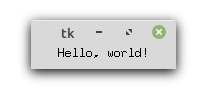
import tkinter as tk
root = tk.Tk() # 创建根窗口
# 在窗口中增加内容
w =tk.Label(root, text="Hello, world!")
w.pack() # 打包,根据内容大小设定窗口
root.mainloop() # 显示窗口直至其关闭
16.2.2. Tk库-控件
Tk 控件(Widget):用于画布上各个单元的绘制:
- Label 标签。用来显示文字或图片
- Button 按钮。响应鼠标或键盘操作/事件的标签
- Entry 文本框。单行文字域,用来收集键盘输入
- Text 文本域。 多行文字区域,可用来收集(或显示)用户输入数字
- Frame 框架。包含其他组件的纯容器
- Canvas 画布。提供绘图功能(直线、椭圆、多边形、矩形)以包含位图或图形
- Message 消息框。类似于标签,但可以显示多行文本
- Checkbutton 选择按钮。一组方框,可以选其中任意个选项
- Listbox 列表框。一个选项列表,用户可以从中选择
- Menu 菜单。点下菜单按钮后弹出的一个用户可以选择的列表
- Menubutton 菜单按钮。用来包含菜单的组(下拉式,层叠式等)
- Radiobutton 单选按钮。一组按钮,其中只有一个可被按下
- Scale 进度条。线性”滑块”组件,可设定起始值和结束值
- Scrollbar 滚动条。对其支持的组件(文本功能)调节显示范围
…………
16.2.3. Tk库-按钮
import tkinter as tk
import tkinter.messagebox as tkm
def callback():
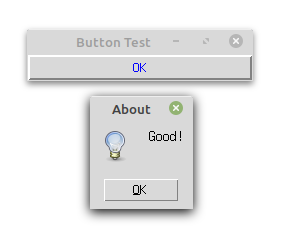
    tkm.showinfo("About", "Good!")

root = tk.Tk() # 创建根窗口
root.title("Button Test")   # 定义窗口标题
tk.Button(root, text="OK",fg="blue",bd=2, width=28, command=callback).pack()
root.mainloop()
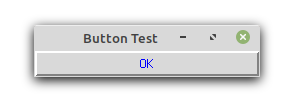 按下OK按钮会弹出一个对话窗口。
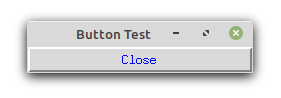
关闭窗口
import tkinter as tk
def quit():
    root.destroy()  # 关闭根窗口

root = tk.Tk() # 创建根窗口
root.title("Button Test")   # 定义窗口标题
tk.Button(root, text="Close",fg="blue",bd=2, width=28, command=quit).pack()
root.mainloop()
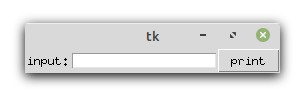
输入框
from tkinter import *
def a():
    print(E.get())

root = Tk()
Label(root,text = "input:").pack(side = LEFT)
E = Entry(root)
E.pack(side=LEFT)
B = Button(root, text = "print", command = a)
B.pack(side = RIGHT)
root.mainloop()
16.2.4. 几何布局
针对窗口(画布),我们可以选择不同的布局方式:
- pack:采用块的方式组织控件,组件简单的布局中代码量最少。默认在父窗体中自顶向下添加组件。
- grid:采用类似表格的结构组织控件,适合设计对话框和带有滚动条的窗体
- place:使用绝对坐标将控件放到指定位置
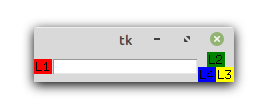
pack布局:
from tkinter import *
root = Tk()
Label(root,text="L1", bg = "red").pack(side = LEFT)
Entry(root).pack(side=LEFT)
Label(root,text="L2",bg="green").pack(side = TOP)
Label(root,text="L3",bg="yellow").pack(side = RIGHT)
Label(root,text="L4",bg="blue").pack(side = BOTTOM)
root.mainloop()
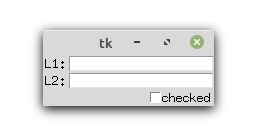
Grid 布局
from tkinter import *
root = Tk()
Label(root, text="L1:").grid(row=0)
Label(root, text="L2:").grid(row=1)
e1 =        Entry(root).grid(row=0, column=1)
e2 =        Entry(root).grid(row=1, column=1)
cbutton = Checkbutton(root, text="checked")
cbutton.grid(columnspan=2, sticky='E')
mainloop()
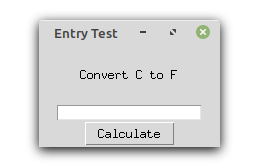
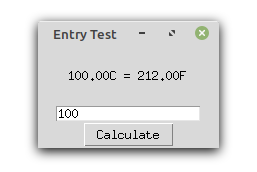
文字重设
import tkinter as tk
def btnClicked():
    cd = float(entryCd.get())
    labelH.config(text = "%.2fC = %.2fF" %(cd, cd*1.8+32))

top = tk.Tk()
top.title("Entry Test")
labelH = tk.Label(top, text="Convert C to F", height=5, width=20)
labelH.pack()
entryCd = tk.Entry(top, text = "0")
entryCd.pack()
btnCal = tk.Button(top, text = "Calculate", command = btnClicked)
btnCal.pack()
top.mainloop()
绘图框
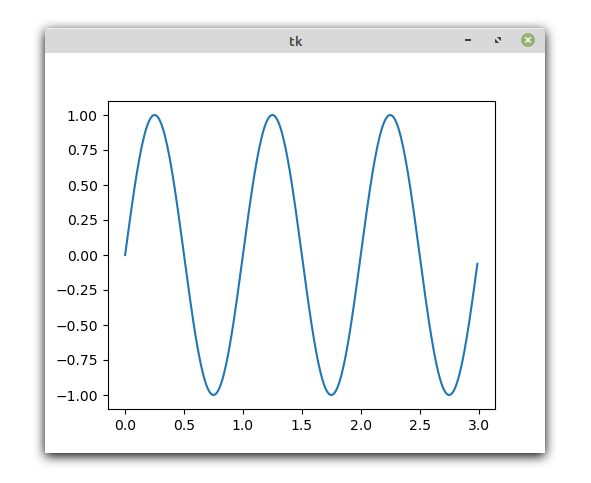
import matplotlib as mpl
mpl.use("TkAgg")
from numpy import arange, sin, pi
from matplotlib.backends.backend_tkagg import FigureCanvasTkAgg
import tkinter as Tk
f=mpl.figure.Figure(figsize=(5, 4), dpi=100)
a=f.add_subplot(111)
t=arange(0.0, 3.0, 0.01)
s=sin(2*pi*t)
a.plot(t, s)
root = Tk.Tk()
canvas = FigureCanvasTkAgg(f, master=root)
canvas.draw()
canvas.get_tk_widget().pack(side=Tk.TOP, fill=Tk.BOTH, expand=1)
Tk.mainloop()
16.2.5. matplotlibs后端
| 后端 | 描述 |
|---|---|
| GTKAgg | Agg渲染器输出到GTK绘图面板(需要PyGTK) |
| GTK | GDK渲染器输出到GTK绘图面板(不推荐,需要PyGTK) |
| GTKCairo | Cairo渲染器输出到GTK绘图面板(需要PyGTK) |
| WXAgg | Agg渲染器输出到wxWidgets绘图面板(需要wxPython) |
| WX | 原生wxWidgets绘图输出到wxWidgets绘图面板(不推荐,需要wxPython) |
| TkAgg | Agg渲染器输出到Tk绘图面板(需要Tkinter) |
| QtAgg | Agg渲染器输出到Qt绘图面板(不推荐,请使用Qt4Agg,需要PyQt) |
| Qt4Agg | Agg渲染器输出到Qt4绘图面板(需要PyQt4) |
| FLTKAgg | Agg渲染器输出到FLTK绘图面板(需要pyFLTK, 使用不是很广,考虑使用TKAgg,GTKAgg,WXAgg,或者QT4Agg替代) |
| macosx | Cocoa渲染器在osx上。(目前在非交互式模式缺少阻塞show()行为) |
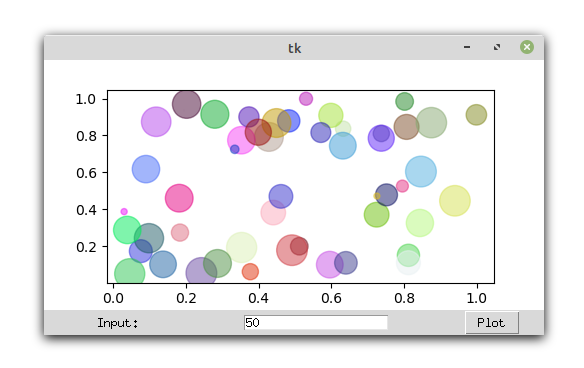
16.2.6. 根据输入参数画图
代码参考 网址
import matplotlib as mpl
mpl.use("TkAgg")
import numpy as np
from matplotlib.backends.backend_tkagg import FigureCanvasTkAgg
import tkinter as Tk

def rplot():
    n=int(inputEntry.get())
    f.clf()
    a = f.add_subplot(111)
    x = np.random.rand(n,3)
    c = np.random.rand(n,3)
    a.scatter(x[:,0], x[:,1], s=x[:,2]*500, alpha=0.5, color=c)
    canvas.draw()

root = Tk.Tk()
Tk.Label(root,text="Input:").grid(row=1,column=0)
inputEntry=Tk.Entry(root)
inputEntry.grid(row=1,column=1)
inputEntry.insert(0,"50")
Tk.Button(root,text="Plot",command=rplot).grid(row=1, column=2,columnspan=3)

f = mpl.figure.Figure(figsize=(5, 2.5), dpi=100)
canvas = FigureCanvasTkAgg(f, master=root)
canvas.draw()
canvas.get_tk_widget().grid(row=0, columnspan=3)
Tk.mainloop()
16.2.7. 画布动画
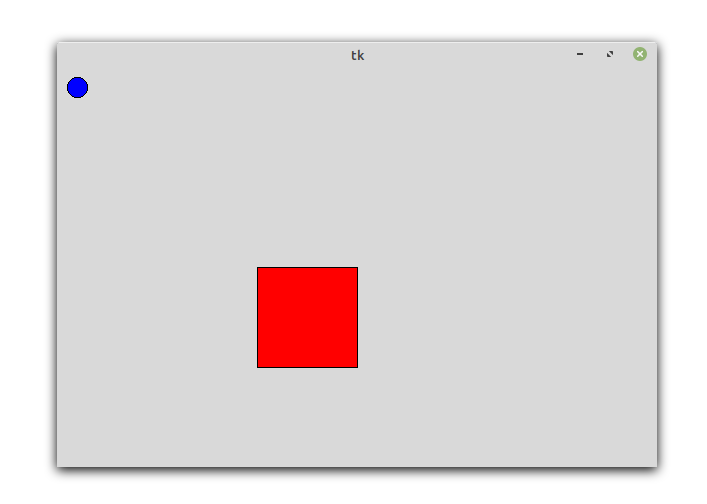
我们画一个球和方块,并让球可以运动:
from tkinter import *
tk = Tk()
tk.geometry('600x400')
frame = Frame(tk)
canvas = Canvas(frame) # use canvas

frame.pack(fill = BOTH, expand = 1)
canvas.pack(fill = BOTH, expand = 1)
box = canvas.create_rectangle(200,200,300,300, fill="red")
ball = canvas.create_oval(10,10,30,30,fill='blue',tags = 'ball')
x_move = 2; y_move = 2
while True:
canvas.move(ball, x_move, y_move)   # movement
canvas.update()
time.sleep(0.02)
16.2.8. 鼠标事件
from tkinter import *

root= Tk()
def callback(event):
print( "clicked at", event.x, event.y)

frame = Frame(root, width=200,height=200)
frame.bind("<Button-1>",callback)
frame.pack()
root.mainloop()
clicked at 116 125
clicked at 78 91
clicked at 82 178
clicked at 158 171
16.2.9. 打包
为了让程序能够在其他人的机器上直接执行,我们需要 pyinstaller 将这些python模块和运行时需要的依赖库文件打包.
在终端下执行以下命令即可安装:
pip install pyinstaller
pyinstaller –F –w tk_ball.py
我们也可以选择其他打包工具
| Solution | windows | linux | os x | python3 | license | one file mode | zipfile import |
|---|---|---|---|---|---|---|---|
| bbfreeze | yes | yes | yes | no | MIT | no | yes |
| py2exe | yes | no | no | yes | MIT | yes | yes |
| pyInstaller | yes | yes | yes | yes | GPL | yes | no |
| cx-Freeze | yes | yes | yes | yes | PSF | no | yes |
| py2app | no | no | yes | yes | MIT | no | yes |